The shortest guide of Git and GitHub
Git and GitHub are essential tools for developers. This guide provides a concise overview of their features and how to use them effectively.
In October, I went to a Hack Club Hackathon with beginners and high school students, most of them were not aware about Git and GitHub. They had difficulty in uploading their projects to GitHub and collaborating with others. However, the worst part was, when they messed up and lost hours of progress because they didn't use any version control system.
This will be an extremely concise and to the point guide, such that it can also be used as a cheat sheet for Git and GitHub. It will cover the basics of Git, how to use GitHub, and some common commands.
Very Small and Simple History Lesson
- People made code projects and shared them with each other by sending files back and forth. This was a nightmare to manage, especially when multiple people were working on the same project.
- Then people decided that instead of naming their folders "FINAL FINAL FINAL", they would use version numbers like "v1.0", "v1.1", etc. This was a bit better, but still not ideal.
- Then people started using version control systems that took a collection of changes and termed them under a hash version called a commit.
- A collection of commits is called a branch, and the main branch is called
main(ormasterin older repositories). - Different people could work on different branches and then merge their changes back into the main branch when they were done.
Why use Git and GitHub?
- Version Control: Git allows you to keep track of changes to your code and revert back to previous versions if something goes wrong.
- Collaboration: GitHub provides a platform for developers to collaborate on projects, share code, and contribute to open source projects.
- Backup: GitHub serves as a remote backup for your code, ensuring that you don't lose your work if something happens to your local machine.
Let's make our first repository!
There are two ways to create a repository, you can either create it on GitHub and then clone it to your local machine, or you can create it locally and then push it to GitHub. Let's go with the first option since it's more common and easy.
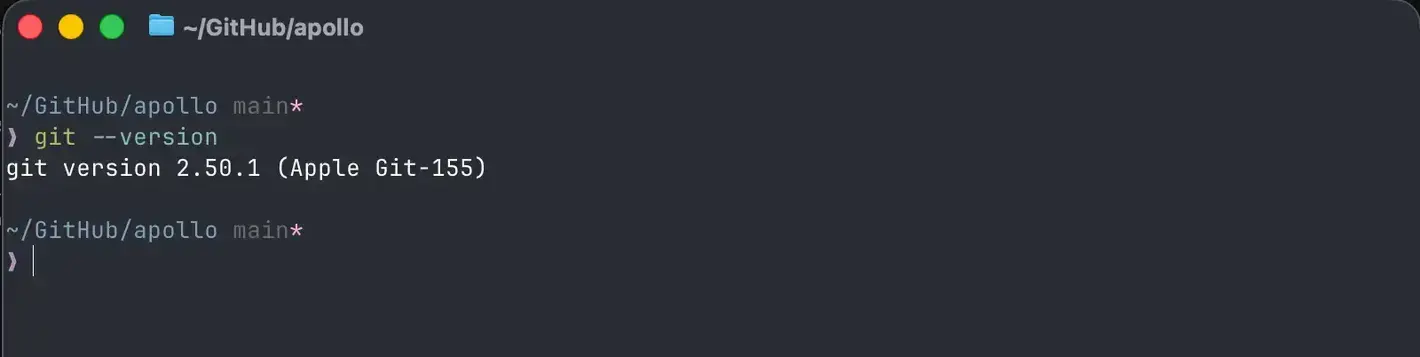
Make sure you have Git installed on your system duh. You can check by running git --version in your terminal. If you don't have it, you can download it from here.
To make a repository, create an account on GitHub.com. Now visit repo.new to create a new repository. Give it a name, and optionally add a description. You can also choose to make it public or private. For this guide, let's make it public.
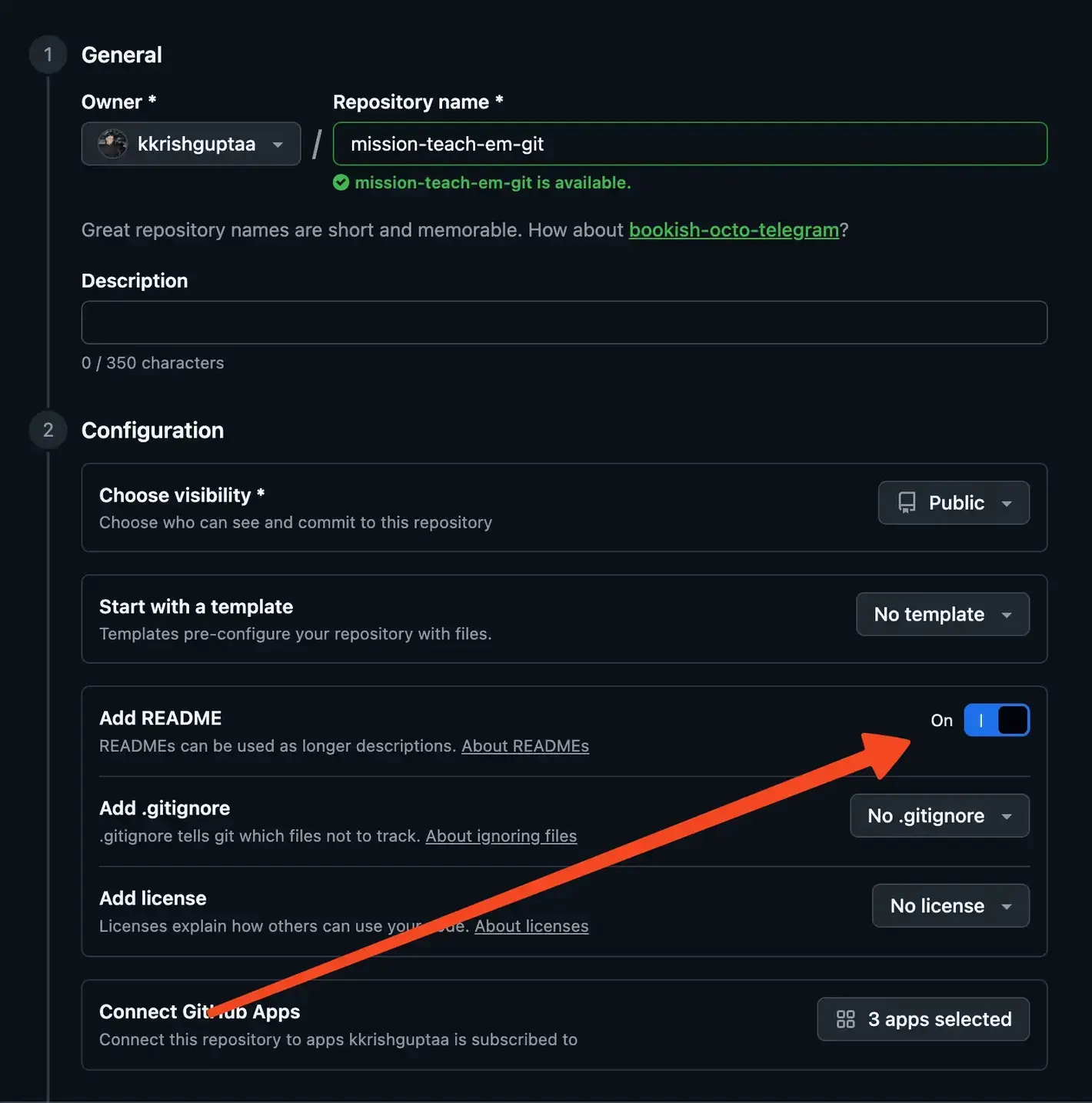
Make sure to check the box that says "Initialize this repository with a README". This will create a README file for you, which is a good place to describe your project.
Now open a terminal and open a folder where you want to clone your repository. Git will create a folder with the name of your repository in that folder.
git clone https://github.com/kkrishguptaa/mission-teach-em-git.git

# REPLACE THE URL WITH YOUR REPOSITORY URL
Now you can open the folder in your code editor and start working on your project. When you're ready to save your changes, you can use the following commands:
git add . # This will select all the files you want to include in the changes you will include in that commit. You can also specify individual files instead of using the dot.

git commit -m "Your commit message here" # This will create a commit with the changes you added and a message describing the changes.

git push origin main # This will push your changes to the main branch on GitHub.
Say, I made some changes to the README file and I want to save those changes. I would run the following commands:
git add README.md

git commit -m "Updated the README file with more information about the project"

git push origin main
And say I changed a lot of files in my project and I want to save those changes. I would run the following commands:
git add .

git commit -m "Made a lot of changes to the project"

git push origin main
OKAY, remember that git add only stages the changes, i.e. includes them for the next commit. To save the changes, you need to run git commit after git add.
And remember that git push is what actually uploads your changes to GitHub. If you forget to run git push, your changes will only be saved locally on your machine and won't be visible on GitHub.
Collaborating with others
Remember the command we ran
git push origin main
The main here represents a branch, and origin represents the remote repository on GitHub. When you push your changes, you're pushing them to the main branch on GitHub.
If you're working with many people, it is a smart idea to make a branch for every major feature or change you're working on. This way, you can work on your changes without affecting the main branch until you're ready to merge your changes.
To create a new branch, you can use the following command:
git checkout -b your-branch-name
This will create a branch and switch to it. To push the changes to GitHub, you can use the following command:
git push origin your-branch-name
Now, the changes will NOT be on the main branch. You will have to go and create a pull request on GitHub. GitHub will show you a message on the repository page that says "Compare & pull request". Click on that button and then click on "Create pull request". This will create a pull request for your changes.
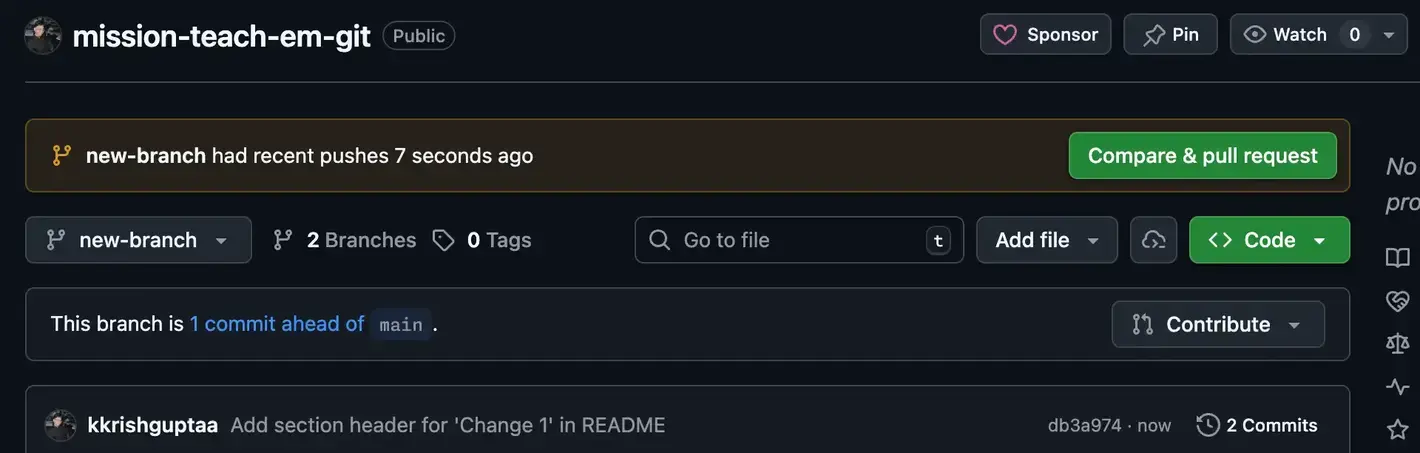
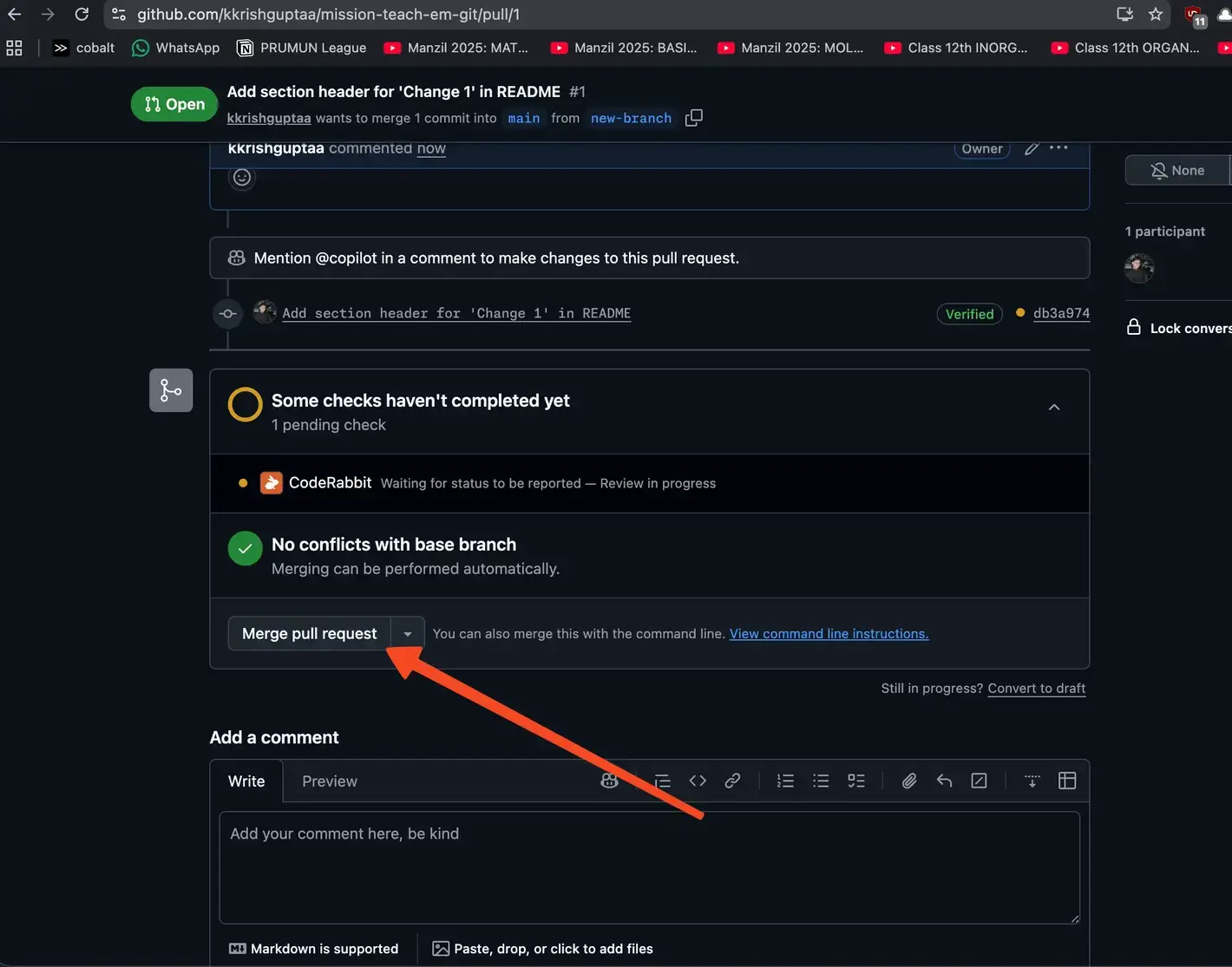
After that if your changes are in the same file as someone else's changes, GitHub will show you a message that says "This branch has conflicts that must be resolved". This means that there are conflicting changes in the same file and you need to resolve them before you can merge your changes. You can click on the "Resolve conflicts" button and then manually edit the file to resolve the conflicts. After resolving the conflicts, you can commit the changes and then merge your changes into the main branch.
If you find conflicts, I recommend asking for help from someone who is more experienced with Git and GitHub, as resolving conflicts can be tricky for beginners. You can also read this article by GitHub to learn how to resolve conflicts on GitHub. However, I recommend resolving conflicts locally on your machine using a code editor, as it is easier to see the changes and resolve them.
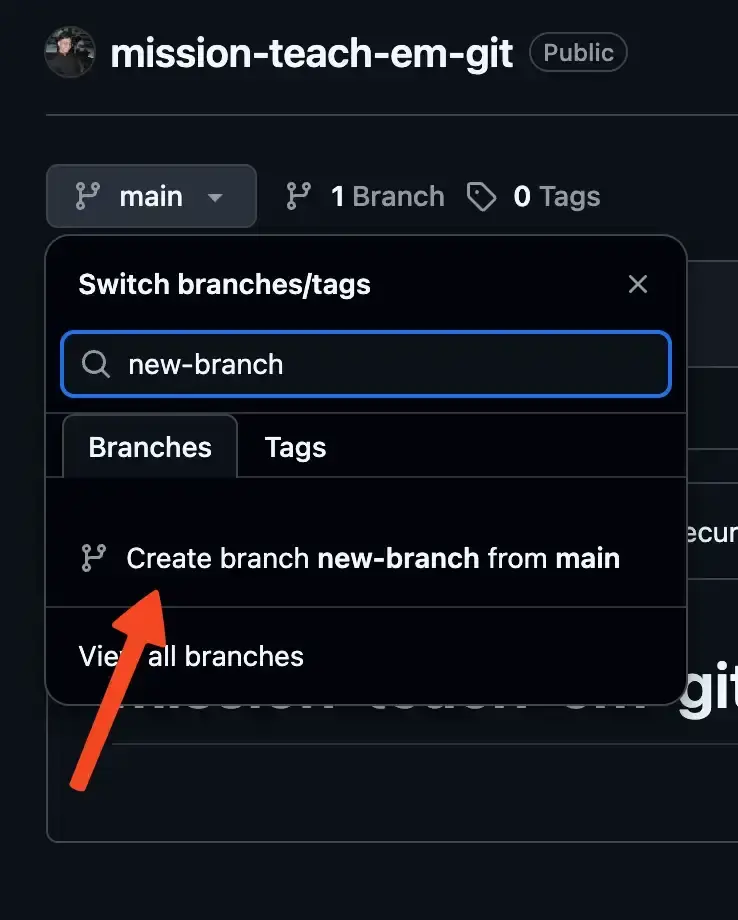
You can also create a branch on GitHub, but then you will have to clone the branch on your system with git pull origin your-branch-name and then git checkout your-branch-name to switch to that branch.
Bringing changes from the main branch to your branch
If you're working on a branch and someone else has made changes to the main branch, you can bring those changes into your branch using the following command:
git pull origin main
You also need to do this periodically for your main branch to get the latest changes from other people. This is especially important if you're working on a branch for a long time, as there might be many changes in the main branch that you need to bring into your branch.
IMPORTANT TIPS
- Always write meaningful commit messages. This will help you and others understand what changes were made in each commit.
- Always pull the latest changes from the main branch before you start working on your branch.
- Commit as frequently as possible.
- DO NOT TOUCH the
.gitfolder. Or you might lose all your progress and have to start over. - Don't be afraid to ask for help if you're stuck. Git and GitHub can be confusing at first, but there are many resources available online to help you learn.
GitHub Is Not Just for Code
You will notice a lot of different tabs on GitHub such as issues, releases, actions, etc. GitHub is not just for code, it can be used for any type of project. You can use GitHub to manage your projects, track issues, and even host your website using GitHub Pages.
I recommend beginners to at least use the issues tab to track their progress and to keep a to-do list for their project. This will help you stay organized and keep track of what you need to do. You can learn the other features of GitHub as you go along, but the most important thing is to get comfortable with using Git and GitHub for your projects.
SUGGESTIONS FOR FURTHER READING
No amount of reading can replace actual practice, I would recommend you to create a repository and start breaking stuff and trying to put it back together. That is how I learned Git and GitHub, and that is how you will learn it too. The best way to learn is by doing, so don't be afraid to make mistakes and learn from them.
If you still want to learn more about Git and GitHub, here are some resources that I recommend: